




WordPress is built with many search-friendly features, but installing WordPress does not automatically make a website SEO-optimized. A site can use WordPress and still struggle with indexing problems, slow page templates, duplicate archive pages, weak internal linking, poorly configured plugins, and content that does not match search intent.
That is the difference between an SEO-friendly platform and a properly optimized website.
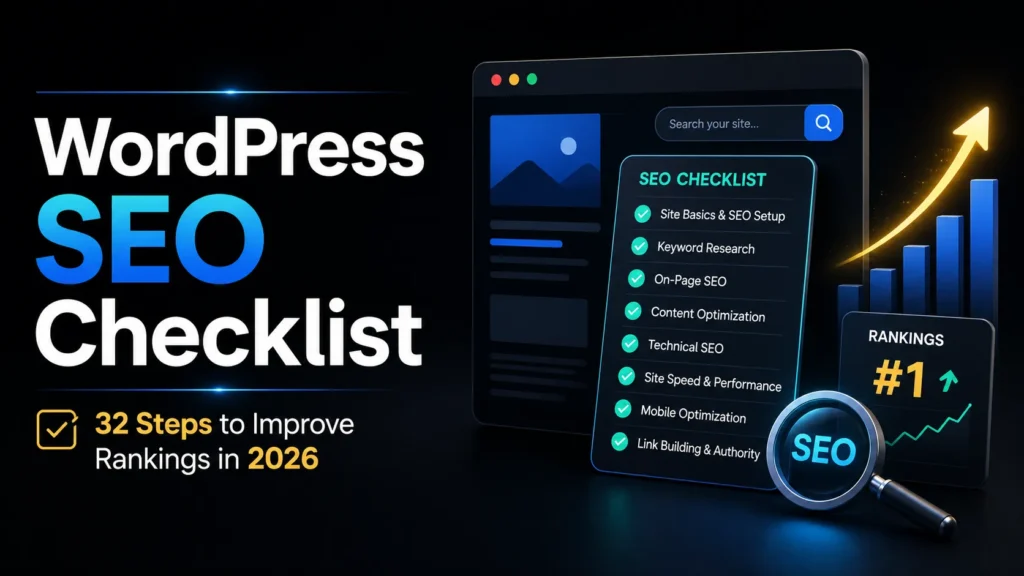
This WordPress SEO checklist covers the essential technical, on-page, content, structural, and maintenance tasks needed to create a stronger search foundation. It can be used when launching a new WordPress website or auditing an existing one that is not performing as expected.
TL;DR: Effective WordPress SEO depends on five connected areas: technical configuration, site performance, on-page optimization, content strategy, and ongoing monitoring. Completing this checklist will not guarantee first-page rankings, but it will remove common SEO barriers and make it easier for search engines to crawl, understand, and evaluate your website.
WordPress SEO Setup Checklist
1. Check Your Search Engine Visibility Settings
Before making any other SEO changes, confirm that WordPress is allowing search engines to access the website.
Go to:
Settings > Reading > Search engine visibility
Make sure “Discourage search engines from indexing this site” is not selected on a live website.
This setting is useful during development, but websites are sometimes launched without disabling it. When that happens, search engines may be discouraged from indexing important pages.
You should also check whether a maintenance plugin, staging configuration, password protection setting, or hosting-level rule is preventing crawlers from accessing the website.
2. Choose a Clean Permalink Structure
WordPress can generate URLs containing numbers and query parameters, such as:
example.com/?p=123
These URLs provide little context to visitors or search engines. For most websites, the Post name structure creates cleaner URLs:
example.com/wordpress-seo-checklist/
Go to:
Settings > Permalinks > Post name
Keep URLs concise, readable, and relevant to the page topic.
Do not change the permalink structure of an established website without planning the migration carefully. Every old URL should be mapped to its most relevant new URL using a permanent 301 redirect. Otherwise, existing links may break and previously earned search visibility may be lost.
3. Install an SSL Certificate
Your website should load securely over HTTPS rather than HTTP.
Most reputable hosting providers offer free SSL certificates through services such as Let’s Encrypt. After activating the certificate, redirect all HTTP URLs to their HTTPS equivalents.
Check that:
- Internal links use HTTPS.
- Canonical tags use HTTPS.
- Sitemap URLs use HTTPS.
- Images and scripts do not create mixed-content warnings.
- HTTP URLs redirect directly to the correct HTTPS version.
HTTPS supports website security, protects user information, and contributes to a trustworthy browsing experience.
4. Choose One Preferred Domain Version
A website may be accessible through several variations:
http://example.comhttps://example.comhttp://www.example.comhttps://www.example.com
Choose one preferred version and redirect all alternatives to it.
For example, when the preferred URL is https://example.com, every other variation should resolve directly to that version. This helps consolidate links, signals, and indexing around one consistent domain.
5. Use a Fast, Well-Maintained Theme
A theme affects far more than visual design. It influences HTML structure, page speed, mobile usability, accessibility, and compatibility with plugins.
Choose a theme that:
- Receives regular updates.
- Uses clean, lightweight code.
- Works well on mobile devices.
- Does not load unnecessary scripts.
- Supports your required page layouts.
- Is compatible with your SEO and caching plugins.
Do not evaluate a theme using only its demo website. Test it with your real plugins, images, fonts, page builder, analytics scripts, and content.
A visually impressive theme can still create serious performance problems if it loads excessive JavaScript, animations, sliders, fonts, and third-party resources.
6. Install and Configure One SEO Plugin
WordPress provides useful SEO foundations, but it does not offer complete control over titles, descriptions, schema, sitemaps, redirects, and indexation settings through its standard interface.
Popular options include:
- Rank Math
- Yoast SEO
- All in One SEO
Use only one primary SEO plugin. Running multiple SEO plugins can produce duplicate title tags, conflicting canonical tags, duplicate sitemaps, and overlapping structured data.
After installation, configure:
- SEO title templates
- Meta description templates
- Canonical URLs
- Indexation settings
- XML sitemaps
- Social sharing metadata
- Breadcrumbs
- Schema defaults
- Redirect management
Installing a plugin is not enough. Its settings must match the structure and purpose of your website.
7. Create and Submit an XML Sitemap
An XML sitemap identifies the URLs you consider important and helps search engines discover them more efficiently. Google describes a sitemap as a file that provides information about pages and their relationships.
Most SEO plugins generate an XML sitemap automatically.
Your sitemap should include only URLs that are:
- Canonical
- Indexable
- Accessible
- Valuable to searchers
- Returning a successful status code
Exclude redirected URLs, deleted pages, thin archives, staging pages, internal search results, and pages marked noindex.
Submit the sitemap through Google Search Console. Remember that sitemap submission supports discovery but does not guarantee indexing.
8. Set Up Google Search Console and Analytics
Google Search Console helps you understand how Google crawls, indexes, and displays your website.
Use it to monitor:
- Indexed and excluded pages
- Search queries
- Organic clicks and impressions
- Click-through rates
- Core Web Vitals
- Sitemap processing
- Manual actions
- Security warnings
- Structured-data issues
You should also configure an analytics platform to track business results such as form submissions, calls, purchases, downloads, or consultation requests.
Search Console shows visibility in Google Search. Analytics shows what visitors do after arriving.
Read More About: Local SEO Strategy: A Complete Guide to Ranking in the Local Pack (2026)
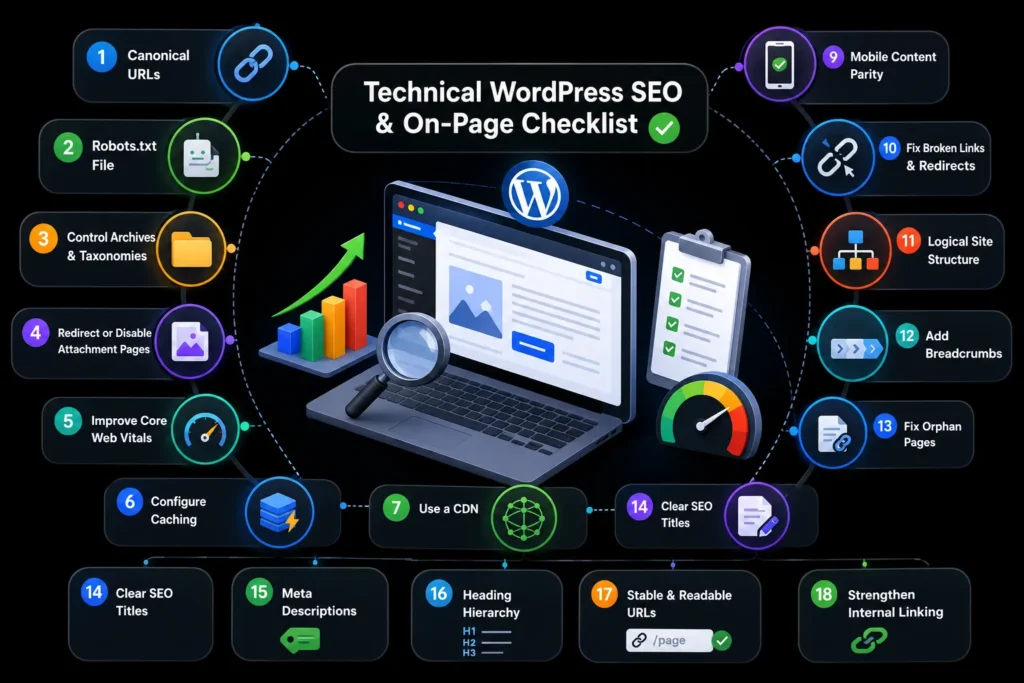
Technical WordPress SEO Checklist
9. Configure Canonical URLs
WordPress can generate similar URLs through categories, tags, archives, parameters, pagination, and attachment pages.
A canonical tag identifies the preferred version of a page when duplicate or very similar URLs exist. Google supports canonical signals to help consolidate duplicate URLs.
Your SEO plugin usually adds self-referencing canonical tags automatically. Check that:
- Every indexable page has an appropriate canonical.
- HTTPS pages do not canonicalize to HTTP.
- Canonicals do not point to redirected or broken URLs.
- Product, category, and parameter pages use the correct preferred URL.
- Staging URLs never appear as production canonicals.
10. Review Your Robots.txt File
The robots.txt file tells crawlers which areas of a website they may access. However, it should not be used as the main method for removing pages from search results. Google states that robots.txt controls crawler access rather than guaranteeing that a URL will remain unindexed.
Check that robots.txt does not block:
- Important pages
- CSS files
- JavaScript files
- Images needed for search
- Resources required to render your pages
Use a noindex directive or password protection when a page must remain out of search results.
11. Control Category, Tag, Author, and Date Archives
WordPress automatically creates several archive types, including:
- Category pages
- Tag pages
- Author archives
- Date archives
- Format archives
- Custom taxonomy archives
These pages are not automatically harmful. A well-developed category page can rank and help users navigate related content.
Problems occur when several archives display the same posts without unique context. This can create thin or repetitive pages.
For each archive type, decide whether to:
- Add useful introductory content.
- Include it in the sitemap.
- Allow it to be indexed.
- Consolidate it with another archive.
- Disable or noindex it.
Small single-author websites, for example, may not need separate author archives if they duplicate the main blog page.
12. Redirect or Disable Thin Attachment Pages
WordPress can create a separate attachment page whenever an image or media file is uploaded.
These pages often contain little more than the image and title, making them low-value search results. Configure your SEO plugin to redirect attachment URLs to the media file or the parent page unless the attachment pages contain genuinely useful content.
13. Improve Core Web Vitals
Core Web Vitals measure real-world loading performance, interactivity, and visual stability. Google recommends achieving good Core Web Vitals as part of creating a strong page experience, although passing these metrics alone does not guarantee top rankings.
Focus on:
- Largest Contentful Paint: How quickly the main content becomes visible.
- Interaction to Next Paint: How quickly the page responds to interaction.
- Cumulative Layout Shift: How stable the layout remains while loading.
Common WordPress causes of poor performance include:
- Oversized hero images
- Heavy page builders
- Slow hosting
- Excessive plugins
- Unoptimized fonts
- Third-party tracking scripts
- Large CSS and JavaScript files
- Missing image dimensions
- Poor caching configuration
Evaluate field data in Search Console alongside laboratory tests from PageSpeed Insights.
14. Configure Caching Properly
WordPress generates many pages dynamically. Caching stores reusable versions so the server does not need to rebuild every page for every request.
Caching may be provided through:
- Your hosting provider
- A WordPress caching plugin
- A content delivery network
- Server-level technology
Popular plugins include WP Rocket, LiteSpeed Cache, and W3 Total Cache. Do not install several caching plugins at the same time.
Test the website after activating optimization features because aggressive CSS or JavaScript settings can break forms, menus, tracking, and interactive elements.
15. Use a Content Delivery Network
A content delivery network serves static assets from locations closer to visitors and can reduce load times for geographically distributed audiences.
A CDN may help deliver:
- Images
- CSS
- JavaScript
- Fonts
- Video assets
- Cached HTML
Cloudflare is a common option, although many managed WordPress hosts provide their own CDN services.
A CDN cannot compensate for poor hosting, unoptimized templates, or oversized assets. It should be part of a wider performance strategy.
16. Optimize Images
Images are among the most common causes of slow WordPress pages.
For every image:
- Use an appropriately sized file.
- Compress it before or during upload.
- Use WebP or AVIF where suitable.
- Add meaningful alternative text.
- Specify width and height.
- Use responsive image sizes.
- Lazy-load below-the-fold images.
- Avoid lazy-loading the main hero image.
- Use descriptive file names.
Alt text should explain the image for users who cannot see it. Do not insert keywords unnaturally, and use an empty alt attribute for purely decorative images.
17. Ensure Mobile Content Parity
Google primarily uses the mobile version of a page for indexing. Important content, headings, links, metadata, images, and structured data should therefore remain available on mobile.
Check:
- Mobile navigation
- Font readability
- Button and link spacing
- Responsive images
- Forms
- Tables
- Pop-ups
- Sticky banners
- Content hidden in tabs
- Desktop and mobile metadata
Test with Chrome DevTools, PageSpeed Insights, Search Console, and real mobile devices.
18. Fix Broken Links and Redirect Problems
Broken links interrupt users and make websites harder to crawl.
Audit for:
- Broken internal links
- Broken external references
- Redirect chains
- Redirect loops
- Soft 404 pages
- Deleted pages with backlinks
- Links pointing to staging domains
Use a crawling tool or SEO audit platform rather than relying only on a resource-heavy WordPress broken-link plugin.
Redirect a deleted URL only when a closely relevant replacement exists. Otherwise, returning a genuine 404 or 410 response may be more appropriate than redirecting users to an unrelated page.
Read More About: The Death of Traditional SEO: What Replaces It in the AI Search Era
Site Structure and On-Page SEO Checklist
19. Create a Logical Website Hierarchy
Organize content into clear sections so users and search engines can understand how pages relate.
A typical structure may include:
- Homepage
- Main service or product categories
- Individual service or product pages
- Blog categories
- Supporting articles
- Contact and company pages
Important pages should be reachable through clear HTML links rather than depending entirely on a search box or JavaScript interaction.
20. Add Breadcrumbs
Breadcrumbs show the path from a broader section to the current page.
For example:
Home > SEO Services > WordPress SEO
They improve navigation, reinforce hierarchy, and can be supported with BreadcrumbList structured data.
Make sure the visible breadcrumb path matches the actual site structure and the structured data.
21. Fix Orphan Pages
An orphan page has no meaningful internal links pointing to it.
Search engines may discover it through a sitemap, but the lack of internal links suggests that it is disconnected from the rest of the website.
Find orphan pages by comparing:
- Crawl data
- XML sitemap URLs
- Search Console pages
- Analytics landing pages
- Content management exports
Then link useful pages from relevant categories, articles, service pages, or navigation elements.
22. Write Clear SEO Titles
Every indexable page should have a unique and descriptive title.
A strong title should:
- Accurately describe the page.
- Include the main topic naturally.
- Match search intent.
- Differentiate the page from competing results.
- Avoid repeated boilerplate.
- Remain concise enough to read easily.
Character counts can be useful guidelines, but Google displays titles based on available space and may generate a different title link when another source better represents the page.
23. Write Useful Meta Descriptions
A meta description summarizes the page and can influence how appealing the result appears.
Write a unique description that:
- Matches the page content.
- Includes the main topic naturally.
- Communicates a clear benefit.
- Encourages a relevant click.
- Avoids vague promotional language.
Google may use the supplied meta description or generate a different snippet from the page when it better matches the search query.
24. Use a Clear Heading Hierarchy
Use one clear H1 for the main page topic, followed by descriptive H2 and H3 headings.
Headings should:
- Introduce meaningful sections.
- Help readers scan the page.
- Follow a logical hierarchy.
- Include keywords only where natural.
- Never be selected only for visual size.
Use CSS to control appearance rather than using incorrect heading levels for styling.
25. Keep URLs Stable and Readable
A strong URL is concise, descriptive, and easy to understand.
For example:
example.com/wordpress-seo-services/
Avoid:
- Unnecessary dates
- Random numbers
- Repeated keywords
- Excessive category folders
- Unreadable parameters
Do not remove ordinary words simply because they are considered “stop words.” Readability and meaning are more important than forcing the shortest possible slug.
Once a page is published and performing, avoid changing its URL without a clear reason and a proper redirect.
26. Strengthen Internal Linking
Internal links help users discover related information and show how your pages connect.
Use internal links to:
- Connect supporting articles to pillar pages.
- Link informational blogs to relevant service pages.
- Promote newly published pages from older content.
- Reinforce important category pages.
- Guide readers toward the next useful step.
- Prevent valuable pages from becoming orphaned.
Use descriptive anchor text, but avoid repeating the same keyword unnaturally across every link.
WordPress Content SEO Checklist
27. Research Search Intent Before Writing
Keyword research should not focus only on search volume.
Before creating a page, evaluate:
- What the searcher is trying to accomplish
- Which page formats currently satisfy the query
- How competitive the results are
- Whether the topic supports your business
- What information existing results overlook
- Whether another page already targets the same intent
Choose one clear primary topic and use related terms naturally. Do not treat secondary keywords as phrases that must appear a fixed number of times.
28. Create Helpful, Complete Content
Content should be long enough to satisfy the query, but not padded to reach an arbitrary word count.
Some topics need 3,000 words. Others can be answered better in 700 words.
Prioritize:
- Clear explanations
- Original examples
- Practical instructions
- Screenshots
- Useful tables
- First-hand experience
- Reliable sources
- Accurate statistics
- Actionable takeaways
Google recommends creating content primarily to help people rather than producing pages mainly to manipulate rankings.
29. Build Topic Clusters Without Creating Cannibalization
Publish connected content around the main subjects your business wants to be known for.
A WordPress SEO cluster might include:
- WordPress technical SEO
- WordPress page-speed optimization
- WordPress schema
- WordPress SEO plugins
- WordPress category-page optimization
- WordPress migration SEO
Link related pages together and assign each page a distinct purpose.
Before publishing a new article, confirm that an existing page does not already target the same intent. When two pages compete for the same query, consolidate them or reposition one around a different need.
30. Update, Consolidate, or Remove Old Content
Freshness matters most when users expect current information. Do not update a publication date without making meaningful improvements.
During a content review:
- Correct outdated facts.
- Replace broken references.
- Improve weak sections.
- Add relevant examples.
- Refresh screenshots.
- Strengthen internal links.
- Consolidate overlapping posts.
- Redirect obsolete pages when a close replacement exists.
Sometimes the best decision is to leave a successful page unchanged. Update content based on quality, accuracy, rankings, conversions, and search intent—not simply because several months have passed.
Schema and Maintenance Checklist
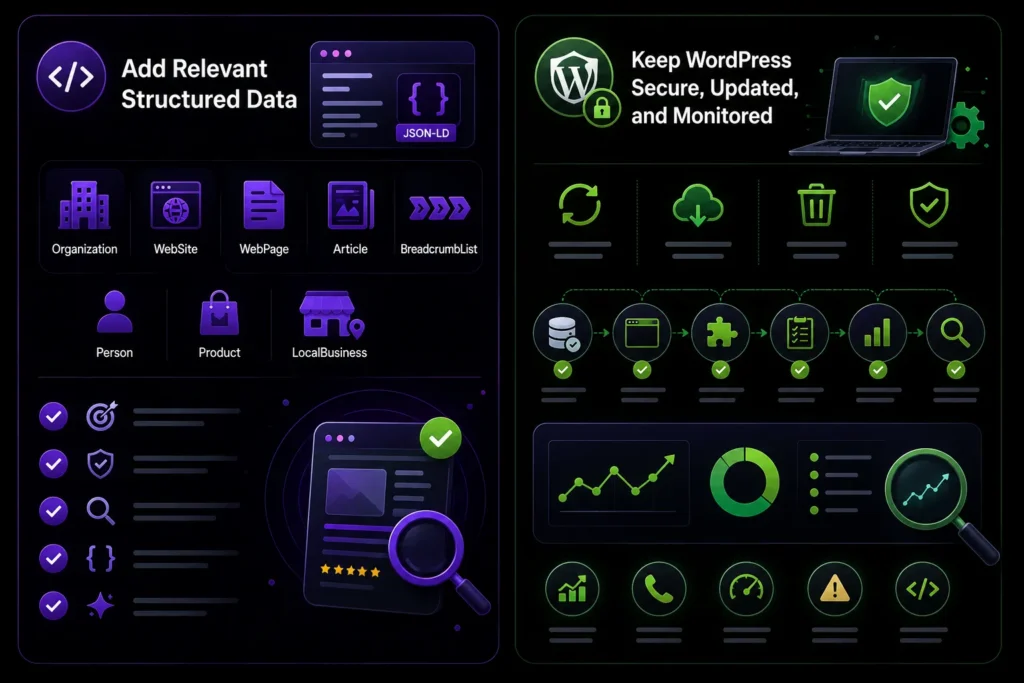
Image Source: AI-generated visual by MoxSEO
31. Add Relevant Structured Data
Structured data helps search engines understand the entities and information on a page, but it does not guarantee a rich result.
Common WordPress schema types include:
- Organization
- WebSite
- WebPage
- Article
- BreadcrumbList
- Person
- Product
- LocalBusiness
Only add schema that accurately represents visible page content. Avoid duplicate markup generated simultaneously by the theme, page builder, and SEO plugin.
Validate important pages using Google’s Rich Results Test. Google recommends JSON-LD and requires structured data to accurately represent the main visible content.
FAQ sections can still help users, but FAQ schema should not be added solely with the expectation of receiving expanded FAQ search results.
32. Keep WordPress Secure, Updated, and Monitored
Update WordPress core, themes, plugins, and the supported PHP version regularly.
Before major updates:
- Create a complete backup.
- Test on a staging website.
- Review compatibility.
- Check important templates and forms.
- Confirm analytics and tracking.
- Crawl the site for unexpected changes.
Remove inactive plugins and themes rather than leaving unsupported software installed.
Monitor Google Search Console regularly for indexing changes, search-performance drops, Core Web Vitals issues, security warnings, and structured-data errors.
The frequency depends on the size and activity of your site, but important business websites should generally be reviewed at least weekly, with a more complete technical audit every few months.
Turn Your WordPress SEO Checklist Into Real Growth
Completing a WordPress SEO checklist is an important first step, but lasting results come from consistent technical improvements, stronger content, better internal linking, and regular performance monitoring.
Even a well-designed WordPress website can lose visibility because of hidden indexing issues, slow templates, duplicate archive pages, weak metadata, or outdated content. Identifying and fixing these problems early can create a stronger foundation for sustainable organic growth.
MoxSEO helps businesses improve WordPress search performance through technical SEO audits, Core Web Vitals optimization, on-page SEO, content planning, schema implementation, and ongoing monitoring.
Do not let avoidable WordPress SEO issues hold back your rankings. Explore our WordPress SEO services or request a professional SEO audit to uncover the opportunities your website may be missing.
Frequently Asked Questions About WordPress SEO
Is WordPress good for SEO?
Yes. WordPress provides a flexible foundation for creating crawlable pages, clean URLs, organized content, and responsive websites. However, themes, plugins, hosting, content quality, and configuration determine how well an individual WordPress site performs.
Which WordPress SEO plugin is best?
Rank Math, Yoast SEO, and All in One SEO are all capable options. The best choice depends on your required features and preferred interface. Correct configuration matters more than choosing the most popular plugin.
How many WordPress plugins should I install?
There is no universal ideal number. A site with 25 lightweight, well-maintained plugins may perform better than a site with five poorly coded plugins. Install only what you need and test each plugin’s effect on speed, security, database activity, and compatibility.
Does every WordPress site need a caching plugin?
Most WordPress websites need caching, but it does not always require a plugin. Your host, server, or CDN may already provide page caching. Check your hosting configuration before installing an additional caching solution.
Should WordPress category and tag pages be indexed?
Index them when they provide useful organization, unique context, and a strong browsing experience. Noindex, consolidate, or remove archives that merely duplicate other pages without adding value.

Sakshi Kumari is an SEO Specialist at MoxSEO with expertise in keyword research, on-page SEO, content optimization, technical SEO, and link-building strategies. She focuses on improving organic visibility, strengthening website performance, and creating search-focused content that attracts relevant traffic. Through data-driven analysis and practical SEO execution, Sakshi helps businesses build stronger search presence and achieve sustainable digital growth.