





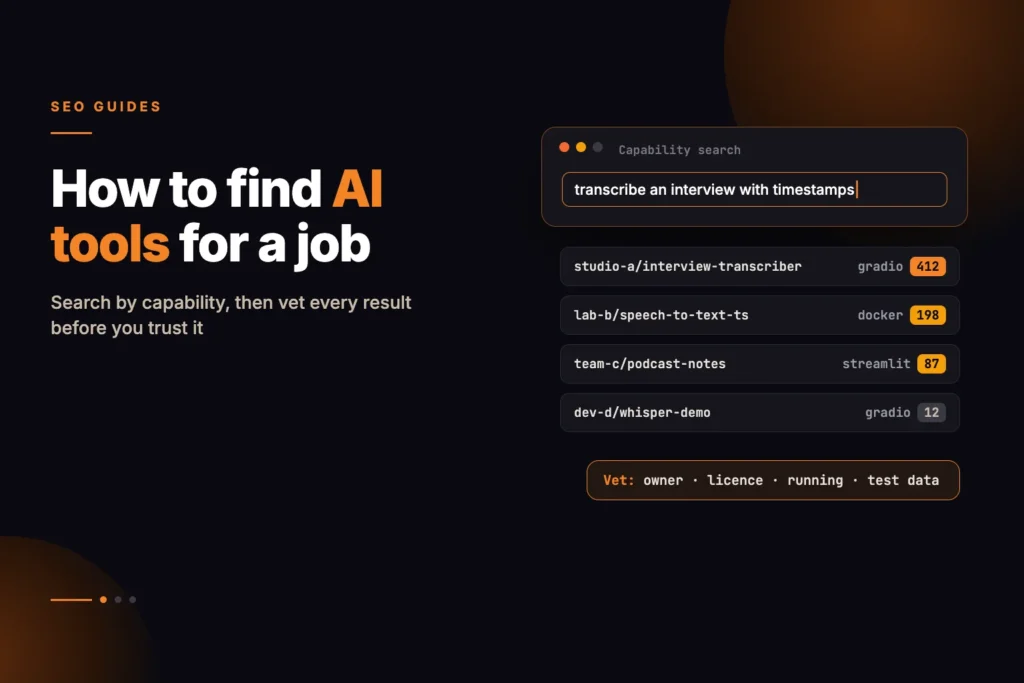
To find an AI tool for a specific job, search for the capability, not a vendor name. Describe what goes in, what should come out, the format you need and any limits, then search a public directory such as Hugging Face Spaces with that description. Brand searches return whoever advertises most; capability searches return whatever actually claims to do the job, which is a wider and often better list to vet.
Short answer: Write a one-line brief such as “transcribe an interview and return timestamps”, search Hugging Face Spaces with it, and treat every result as a lead rather than a recommendation. Open each candidate and check the owner, the model and its licence, whether it is running, and whether it offers an API. Test with harmless sample data before anything real goes in.
Our free Agent and Tool Search runs the search part for you: it sends your description to the public Hugging Face Spaces search and lists up to 12 matching Spaces, most liked first, with each Space’s SDK and like count. It does not test, review or endorse anything it finds. This guide covers the part it leaves to you: writing a query that works and deciding which results deserve your time.
Why search by capability instead of by vendor?
Most people looking for an AI tool start with a name they have heard: a well-known chatbot, a transcription brand, an image editor with a big marketing budget. That is fine when the famous tool fits. It is a poor method when your job is narrow, such as cutting a product photo out of its background at a set resolution, or summarising a 40-page PDF into a fixed set of headings.
A capability search flips the order. You decide what the job is first, then look for anything that claims to do it. On a platform like Hugging Face, many useful apps are built by researchers, small teams and individual developers who will never appear in an advert or a “best AI tools” list. Some are excellent, many are experiments, and a few are abandoned. A capability search finds all of them; your vetting sorts them.
How do you write a good capability query?
A useful query names four things. You will not always fit all four into a short search, but writing them down first makes the search and the vetting easier.
| Part | Question to answer | Example |
|---|---|---|
| Input | What will you give it? | An MP3 of a 45-minute interview |
| Output | What should it give back? | A written transcript |
| Format | In what shape? | Text with timestamps, ideally per speaker |
| Constraints | What must be true? | English, free to try, no account needed for a test |
From that brief, the search itself stays short and concrete: “transcribe interview with timestamps”. Compare that with “audio AI” or “best transcription tool”, which match far too many things or only things described as “best”.
A few habits help:
- Use the words a developer would put in a title or description: “transcribe”, “background removal”, “summarise PDF”, “text to speech”. Search matches text, so plain task words beat marketing language.
- Lead with the verb and the object. “Remove image background” is clearer than “image tool for products”.
- Try synonyms when results are thin: “speech to text” as well as “transcribe”, “summarize” as well as “summarise”, because many authors use American spelling.
- Keep constraints out of the search box if they shrink the results to nothing. Check them on each Space instead.
Three worked examples
These are illustrative jobs of the kind marketers, SEOs and small-business owners actually have. The searches are realistic; what you find will change over time, because Spaces are added, updated and switched off constantly.
Transcribe an interview with timestamps
Brief: a recorded customer interview, needed as text with timestamps so quotes can be found and checked later. Search: “transcribe audio with timestamps”. Expect results built on speech recognition models. On each candidate, check which model it runs, whether the card mentions timestamps and speaker labels, and the maximum file length. Many demos cap uploads or time out on long files, so test with a two-minute clip first.
Remove an image background
Brief: product photos on cluttered backgrounds, needed as PNGs with transparent backgrounds for a shop. Search: “remove image background”. You will usually see several Spaces that do much the same thing. Separate them on output resolution, whether the result keeps fine edges such as hair or fabric, and the licence of the underlying model, which matters if the images will be used commercially.
Summarise a PDF
Brief: long industry reports, needed as a one-page bullet summary. Search: “summarise PDF”. Check whether the Space reads the PDF text directly or needs you to paste it, how long a document it accepts, and whether it sends your text to another service behind the scenes. Do not test this one with confidential reports.
How do you read a Hugging Face Space?
Each Space has its own page on Hugging Face. Before you try the app, read the page around it. Hugging Face’s documentation describes Spaces as a way to host machine learning demo apps, and most of what you need to judge one is visible without signing in.
Owner
The Space’s address is the owner’s name followed by the Space name. The owner can be an organisation or an individual. Open the owner’s profile: an established research group or company that also publishes the underlying model is a stronger sign than an anonymous account with one Space. Two Spaces with near-identical names can come from very different owners, and some are copies of another Space.
Card, model and licence
The Space card is its README.md file, which you open from the Files tab; the main page shows only the app. The settings block at the top of the card names the SDK and often the licence, and a good card goes on to say what the app does, which model it uses and what its limits are. Many cards are only a line or two, so if the model is not named, look in the main code file (often app.py). Then open the model’s own page, which has a model card describing what it was trained to do, known weaknesses and its licence. Read the licence of both the Space and the model. Some permit commercial use, some restrict it, and some leave it unclear. Unclear is a reason to keep looking if the work is for a client.
SDK
Hugging Face documents a small set of ways to build a Space, and the SDK tells you which was used:
| SDK | What it usually means for you |
|---|---|
| Gradio | A simple web form: upload a file or type text, press a button, get a result. Every Gradio Space has a “Use via API” link in the page footer. |
| Streamlit | A data-style app with inputs and outputs on one page, often a little more interactive than a basic form. Hugging Face now sets up new Streamlit apps through Docker, so you may see either label. |
| Docker | Any custom app the author packaged. It can be anything, so read the card closely. |
| Static | A plain web page. Any processing happens in your browser or through another service the page calls. |
Running, sleeping or broken
The page shows the Space’s status. “Running” means it is live now. Spaces on free hardware can go to sleep when nobody has used them for a while, and the page then says the Space is sleeping and offers a button to restart it; starting up can take a while. A build or runtime error means the app is not working at the moment. A Space that is often asleep may be fine for an occasional task, but it is a poor choice for anything you need on demand.
API availability
If you want to call the app from a script, spreadsheet automation or your own workflow, check whether it offers an API and whether the card says anything about limits. Every Gradio Space can be called as an API; the “Use via API” link in its footer shows how. For other SDKs, look for documentation on the card. No documented API means you should plan to use it by hand.
Activity
The Files tab shows when the Space was last changed, and the Community tab shows questions and reports from other users. Unanswered reports that the app is broken are a clear signal. Recent updates and answered questions suggest someone is looking after it.
Why are likes only a rough signal?
Any Hugging Face user can like a Space, and the Agent and Tool Search sorts results by that count. That makes likes a sensible way to order a list, but a weak way to choose from it. Likes accumulate over time, so older Spaces have an advantage over newer ones that may be better. A Space can collect likes during a burst of attention and then go unmaintained. A like says someone found it interesting, not that it handled files like yours accurately. Use likes to decide what to open first, then let the card, the status and your own test decide what to keep.
How do you test an AI app safely?
Treat any unfamiliar Space as a third-party service you know little about. The safest test is one where nothing bad happens even if the app keeps or shares what you sent.
- Use non-sensitive samples. A public podcast clip, a stock product photo, a published report. No client files, personal data, contracts, health or financial information.
- Write down the expected output first. If you know what a correct transcript or summary looks like, you can judge errors instead of being impressed by fluent text.
- Test the awkward cases. A noisy recording, a photo with a white product on a white background, a scanned PDF. Watch how it fails, not only how it succeeds.
- Run the same input twice. If the results differ a lot, factor that in for any job that needs consistency.
- Do not sign in or grant access unless you understand why the app needs it. A demo that asks for a token or file access should explain why on its card.
- Check where input goes. If the card or the code does not make clear whether uploads are stored or passed to another service, assume they might be.
A shortlisting checklist
Run the search in Agent and Tool Search, open the results that look relevant, and keep only those that pass these checks:
- The owner is identifiable and the Space is not an unexplained copy of someone else’s.
- The card says what it does, which model it uses and its limits.
- The licence of the Space and the model allows your intended use.
- The status is running, or it wakes reliably when visited.
- It has been updated or answered user questions reasonably recently.
- It accepts your input format and size.
- It offers a documented API if you need to automate it.
- It passed your test with sample data, including an awkward case.
- You know, or can reasonably find out, what happens to uploaded files.
Two or three Spaces that pass all nine are a good shortlist. If none do, broaden the query, try a synonym, or accept that the job needs a paid, supported product with clear terms.
The flip side: making your own tools discoverable to AI agents
Capability search works in both directions. If people and AI agents increasingly look for tools by what they do, then a business that offers its own calculators, APIs or datasets has an interest in describing them clearly in machine-readable form.
Two approaches are worth knowing. One is publishing well-documented public APIs and pointing to them from a catalog that agents can find at a predictable address; our guide to agentic resource discovery with OpenAPI explains how agents read API descriptions. The other is an llms.txt file, a proposed Markdown summary of the pages that matter most; llms.txt explained gives an honest view of what it does and how limited its adoption still is.
To see whether your site already exposes a catalog, the Agentic Resource Discovery Checker requests /.well-known/ai-catalog.json, checks that it is valid JSON, and looks for pointers to it in your homepage HTML, robots.txt and HTTP headers. That file is an emerging convention rather than a ratified standard, so treat it as a low-cost extra on top of clear public documentation, not a replacement for it.
Where this fits
Searching by capability is not a shortcut to a trustworthy tool; it is a better way to build the list you then check. The tools that survive careful reading and a safe test are usually worth keeping.
How do I find an AI tool for a specific task?
Describe the job rather than a product: what you will put in, what you want back, the format and any limits. Search a public directory such as Hugging Face Spaces with that description, open the most promising results, and check the owner, licence, status and data handling before you test anything.
What is a Hugging Face Space?
A Space is a hosted web app on Hugging Face, usually a demo built on a machine learning model. Each Space has a page with a card describing it, its files, and a status showing whether it is running. Anyone can build one, so quality and upkeep vary widely.
Are Hugging Face Spaces safe to use?
Some are and some are not, and the platform listing alone cannot tell you which. Treat a Space as a third-party app: check who owns it, which model and licence it uses, and what happens to your input. Test with non-sensitive sample data first and keep private or client data out until you are satisfied.
Do more likes mean a Space is better?
No. Likes show how many Hugging Face users liked the Space, which is a rough popularity signal. Older Spaces have had longer to collect them, and a popular demo can be unmaintained. Check status, recent updates and your own test results instead.
Why does a Space say it is sleeping?
Spaces on free hardware can go to sleep after a period of inactivity. The page offers a button to restart it, and starting up can take a while. A Space that sleeps often may be fine for occasional tasks but is a weak choice for anything you rely on daily.
Can I use a Hugging Face Space for client work?
Only after you have read the licence of both the Space and the model it runs, and confirmed where uploaded files go. Some models allow research or non-commercial use only. If the terms or data handling are unclear, do not send client material to it.