




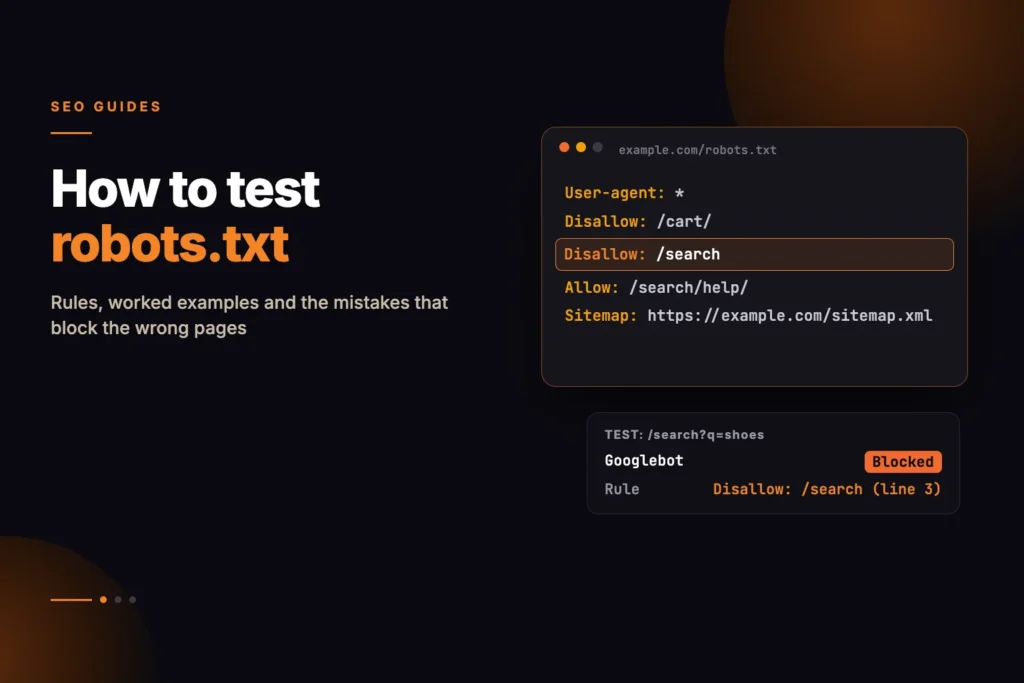
To test robots.txt properly, you check one exact URL against one named crawler and find the single rule that decides whether it may be fetched. Reading the file and guessing is not a test: the answer depends on which group the crawler picks, which rules match the path, and which of those is longest.
Short answer: Paste the full URL into a robots.txt tester, name the crawler (Googlebot, Bingbot, GPTBot and so on), and read which line matched. The crawler follows only the group that names it, or the * group if none does, and within that group the longest matching rule wins, with Allow winning a tie. Google retired its Search Console robots.txt Tester in 2023, so you now need a separate tool to test individual URLs or unpublished rules.
Our free robots.txt tester does exactly that: it fetches the live file from the URL’s site or uses rules you paste, shows the verdict and the deciding line number, and compares the same path across eight search and AI crawlers. This guide explains the logic behind that verdict and the mistakes it usually exposes.
What happened to Google’s robots.txt Tester?
Google retired the robots.txt Tester in Search Console in 2023 and replaced it with the robots.txt report. The report shows the robots.txt files Google found for your property, when it last fetched them, and any warnings or errors it hit while reading them. That is useful for confirming Google can see your file at all, but it does not let you type in an arbitrary URL and crawler and get a verdict, and it cannot test rules you have not published yet.
The URL Inspection tool in Search Console will still tell you whether a specific URL on your verified property is blocked by robots.txt for Google. It covers only Google and only sites you have verified. For Bingbot, AI crawlers or a draft file before deployment, you need an independent robots.txt checker.
How do crawlers decide whether a URL is blocked?
Matching is standardised in RFC 9309, and Google documents how it applies it. There are three stages; most confusion comes from skipping the first.
1. Pick the group for the crawler
A file is made of groups. Each starts with one or more User-agent lines, followed by Allow and Disallow rules. A crawler looks for groups whose user-agent line matches its own token. If it finds one or more, it follows those groups, merged together, and nothing else. Only if no group names it does it fall back to the User-agent: * group.
This is the rule people most often miss. If you add a User-agent: Googlebot group with a single rule, Googlebot stops reading every rule under *. It does not combine the two.
2. Find every rule in that group that matches the path
Rules are matched against the URL path, including the query string, from the start. Disallow: /shop matches /shop, /shop/, /shopping and /shop?page=2. Two special characters change that:
*matches any run of characters, including none, so/*?sort=matches any path containing?sort=.$anchors the end of the URL, so/*.pdf$matches/guide.pdfbut not/guide.pdf?v=2or/pdf-guide/.- Paths are case-sensitive.
/Private/does not match/private/. Field names such asDisallowand user-agent tokens are not case-sensitive. - An empty
Disallow:line matches nothing, so it blocks nothing.
3. Apply the longest match
If more than one rule matches, the rule with the longest path, measured in characters, wins. If an Allow and a Disallow of equal length both match, Allow wins. If nothing matches, the URL is allowed. The order of lines in the file does not matter.
How to test robots.txt, step by step
- Choose the URLs that matter. Test real templates, not just the homepage: a product page, a category with filters, a blog post, a PDF, a JavaScript or CSS file, and any URL you expect to be blocked.
- Enter the full URL in the robots.txt tester. Include the path and query string exactly as crawlers see it, because
/shop?sort=pricecan be blocked while/shopis allowed. - Name the crawler. Leave it empty for Googlebot or type a token such as Bingbot, GPTBot or ClaudeBot. The token is matched against your user-agent lines.
- Decide between live and pasted rules. Leave the rules box empty to fetch the live file from the site root. To check a change before you deploy it, paste the complete new file and run the same URL again.
- Read the deciding rule. The verdict shows the rule and line number that decided it. If it is not the line you expected, look for a longer matching rule or a crawler-specific group that overrides the * group.
- Compare other crawlers. Check the comparison table for surprises, such as a search crawler caught by a rule meant for AI training bots, or an AI crawler you thought you had blocked that has its own permissive group.
Worked examples: rules and expected results
Here is an illustrative file for a fictional shop at example.com. It is deliberately imperfect, because the imperfections are what testing is for.
User-agent: *
Disallow: /checkout/
Disallow: /search
Allow: /search/help
Disallow: /*?sort=
Disallow: /*.pdf$

User-agent: Googlebot
Disallow: /beta/

Sitemap: https://example.com/sitemap.xml
This is what a correct robots.txt tester should report for each case:
| URL path | Crawler | Result | Why |
|---|---|---|---|
/checkout/cart | Bingbot | Blocked | Bingbot has no group of its own, so it uses *; Disallow: /checkout/ matches. |
/checkout/cart | Googlebot | Allowed | Googlebot has its own group, so it ignores * entirely. Only /beta/ is blocked for it. |
/search/help/returns | Bingbot | Allowed | Allow: /search/help (12 characters) is longer than Disallow: /search (7). |
/search-results | Bingbot | Blocked | /search is a prefix match, so it also covers /search-results. |
/shoes?sort=price | Bingbot | Blocked | /*?sort= matches any path with that query parameter. |
/files/size-guide.pdf | Bingbot | Blocked | /*.pdf$ matches a URL ending in .pdf. |
/files/size-guide.pdf?v=2 | Bingbot | Allowed | The $ anchor means the URL must end in .pdf; this one ends in ?v=2. |
/Checkout/cart | Bingbot | Allowed | Paths are case-sensitive, so /checkout/ does not cover /Checkout/. |
The second row is the one that catches most teams out. Whoever added the Googlebot group probably meant to block /beta/ in addition to everything else, but the effect is that Googlebot can now crawl checkout and internal search pages. The fix is to copy every * rule you still want Google to follow into the Googlebot group, or to remove the Googlebot group if it is not needed.
What happens if robots.txt returns an error?
The status code of the file itself changes everything. Google documents this behaviour:
| robots.txt response | How Google treats it |
|---|---|
| 200 with rules | The rules are parsed and applied as described above. |
| 4xx, such as 404 or 410 | As if there were no file: everything may be crawled. Google treats 429 as a server error instead. |
| 5xx server error | Google stops crawling the site for the first 12 hours, then uses its last good copy of the file for up to 30 days, or assumes no restrictions if it has none. |
| Redirect | Google follows at least five redirect hops, then stops and treats the file as not found. |
Google’s documentation also says it generally caches robots.txt for up to 24 hours, so a fix may not be picked up immediately. If the file keeps returning server errors, Google uses its last good copy for up to 30 days, or assumes no restrictions if it has none; after that it treats the file as missing, as long as the rest of the site is available. A 5xx on robots.txt is therefore urgent: it can stop Google crawling a healthy site. If you deliberately want no rules, return a 404 rather than an error. A tester that fetches the live file should show you the status code it received, so check that row before you trust the verdict.
Remember that each protocol, host and port has its own file. https://example.com/robots.txt does not apply to https://shop.example.com/, and the subdomain needs its own.
Common robots.txt mistakes a test will catch
Blocking CSS and JavaScript
Rules like Disallow: /assets/ or Disallow: /*.js$ were once common. Google renders pages, and without the CSS and JavaScript a page needs it may not see the page as users do. Test a few of your stylesheet and script URLs for Googlebot, not just your HTML pages.
Disallow: / left over from staging
A staging site often ships with User-agent: * and Disallow: / to keep it out of search. When the build is promoted to production, the file sometimes goes with it, and the live site is closed to every compliant crawler. Test the homepage and a deep page straight after every launch.
Trailing slashes and case
Disallow: /private blocks /private/, /private.html and /private-offers/, which may be more than you meant. Disallow: /private/ blocks the directory’s contents but not /private itself. And because paths are case-sensitive, a rule written as /Blog/ does nothing for /blog/. Test URLs on both sides of the boundary.
Typos and unsupported lines
Crawlers skip lines they do not understand, silently. A misspelt Disalow: line leaves the path open. Google does not support Noindex: or Crawl-delay: lines in robots.txt, so they have no effect on Google either way. Google also reads only the first 500 KiB of the file, so rules beyond that point are ignored. The tester flags lines it does not recognise for this reason.
Blocking pages you want de-indexed
This is the most damaging mistake because it seems logical. Blocking an indexed page in robots.txt stops Google fetching it, so Google never sees a noindex on it. The URL can stay in results, often with no description, because other pages still link to it.
Does robots.txt stop a page being indexed?
No. Robots.txt controls crawling, not indexing. Google’s documentation says a URL blocked by robots.txt can still be indexed if other pages link to it. To keep a page out of search results, leave it crawlable and add a noindex robots meta tag or an X-Robots-Tag: noindex response header. Once it has dropped out, you can decide whether you also want to block crawling. Our explainer on X-Robots-Tag and noindex walks through how to check which instruction a page is actually sending.
The reverse also matters. A page that is allowed by robots.txt is not guaranteed to be indexed. If a URL passes the robots.txt test but is still missing, look at canonicals, noindex, internal links and sitemaps instead; our guide on pages missing from the sitemap is a good next step, and the XML Sitemap Validator will check the files your Sitemap: lines point to.
How do I test robots.txt for AI crawlers?
AI crawlers follow the same matching rules, but each uses its own user-agent token, and the companies behind them document different purposes for each. OpenAI lists GPTBot and OAI-SearchBot separately, so you can block one and allow the other. Google-Extended is a product token rather than a separate crawler: Google’s documentation says it controls whether content is used for its Gemini models and does not affect inclusion in Google Search. That makes blocking Googlebot to keep content out of AI a costly error.
To test, run the same URL with each token you care about, or use the comparison table in the robots.txt tester, which covers Googlebot, Bingbot, GPTBot, OAI-SearchBot, ClaudeBot, PerplexityBot, Google-Extended and CCBot on the same path. For a site-wide view of which AI crawlers your file admits, the AI Crawler Access checker is quicker, and our guide to auditing robots.txt for AI crawler access explains how to decide what each one should be allowed to fetch.
Keep in mind that robots.txt is a request, not access control. Compliant crawlers respect it; anything that ignores it needs blocking at the server or firewall instead.
A short robots.txt testing checklist
- The file returns 200 at the root of every host and protocol you serve, or a deliberate 404.
- Your key page templates are allowed for Googlebot and Bingbot.
- CSS, JavaScript and image files the pages rely on are allowed.
- Every crawler-specific group repeats the * rules it still needs.
- Pages you want removed from search carry noindex and are not blocked.
- AI crawler rules do what you intended, token by token.
- Each Sitemap: line is a full, working URL.
If the results raise questions about how robots.txt, noindex and sitemaps fit together on your site, that review is part of our technical SEO work. For the wider crawl and index picture, the technical SEO guide puts robots.txt in context.
How do I test my robots.txt file?
Enter a full URL and a crawler name into a robots.txt tester. It fetches the robots.txt file from the site root, or uses rules you paste, picks the group that applies to that crawler, and reports whether the URL is allowed or blocked along with the rule that decided it. Test several real page types, not just the homepage.
Does Google still have a robots.txt tester?
Google retired the robots.txt Tester in Search Console in 2023. It now offers the robots.txt report, which shows the robots.txt files Google found for your property, when they were last fetched and any problems reading them. It does not test arbitrary URLs, other crawlers or unpublished rules.
How do I know if my page is blocked by robots.txt?
Test the exact URL, including any query string, for the crawler you care about. For Google on a site you have verified, the URL Inspection tool in Search Console also reports whether crawling is blocked by robots.txt.
Why is Googlebot ignoring my User-agent: * rules?
If the file has a group for Googlebot, Googlebot follows only that group and ignores the * group. Copy any * rules you still want it to follow into the Googlebot group.
Does blocking a page in robots.txt remove it from Google?
No. Robots.txt controls crawling, not indexing. A blocked URL can still appear in results if other pages link to it. To remove a page, allow crawling and add a noindex meta tag or X-Robots-Tag header.
What happens if robots.txt returns a 404 or 500 error?
Google treats a 4xx response as if there is no file, so everything may be crawled, except 429, which it treats as a server error. A 5xx response makes Google stop crawling for the first 12 hours, then use its last good copy of the file for up to 30 days.